シェルスクリプトマガジン

test

香川大学SLPからお届け!(Vol.72掲載)

投稿日:2021.05.25 | カテゴリー: コード

著者:重松 亜夢

今回は、「gRPC」という通信プロトコルを使った、Webアプリケーションの作成方法を紹介します。gRPCを使うことで、通信量が減らせます。最近注目のマイクロサービスの連携にも活用できます。

シェルスクリプトマガジン Vol.72は以下のリンク先でご購入できます。


図3 「pb/picture.proto」ファイルに記述する内容

syntax = "proto3";
option go_package = "example.com/user_name/sample/pb/go/picture";
package picture;
service Picture {
  rpc GetPictures (GetPicturesRequest) returns (GetPicturesReply) {}
}
message GetPicturesRequest {
  uint32 num = 1;
}
message GetPicturesReply {
  repeated bytes pictures = 1;
}

図4 「pb/protoc-web/Dockerfile」ファイルに記述する内容

FROM node:15-buster
WORKDIR /pb
RUN npm i rimraf -g
RUN curl -L -O https://github.com/protocolbuffers/protobuf/releases/download/v3.15.8/protoc-3.15.8-linux-x86_64.zip
RUN curl -L -O https://github.com/grpc/grpc-web/releases/download/1.2.1/protoc-gen-grpc-web-1.2.1-linux-x86_64
RUN unzip protoc-3.15.8-linux-x86_64.zip && cp ./bin/protoc /usr/local/bin/. && chmod +x /usr/local/bin/protoc
RUN cp protoc-gen-grpc-web-1.2.1-linux-x86_64 /usr/local/bin/protoc-gen-grpc-web && chmod +x /usr/local/bin/protoc-gen-grpc-web

図5 「pb/scripts/picture-compile.sh」ファイルに追記する内容

docker build protoc-web -t streaming-protoc-web
mkdir -p js/picture
docker run -v "$(pwd):/pb" -w /pb --rm streaming-protoc-web \
  protoc --proto_path=. picture.proto \
    --js_out=import_style=commonjs:js/picture \
    --grpc-web_out=import_style=typescript,mode=grpcwebtext:js/picture
mkdir -p ../services/client/src/pb
cp -r ./js/* ../services/client/src/pb/

図6 「Makefil e」ファイルの変更内容

proto: pb/js/picture/picture_pb.js
	# make .proto
pb/js/picture/picture_pb.js: pb/picture.proto
	bash ./pb/scripts/picture-compile.sh

図8 「docker-compose.yaml」ファイルに追加する内容

  proxy:
    container_name: sample-proxy-container
    image: envoyproxy/envoy-dev:1f642ab20b8975654482411537a6bdc5e2f6c4f6
    ports:
      - "8080:8080"
    volumes:
      - ./services/proxy/envoy.yaml:/etc/envoy/envoy.yaml

図9 「services/client/src/components/Picture.tsx」ファイルの内容

import { useState } from 'react';
import { GetPicturesRequest, GetPicturesReply } from "../pb/picture/picture_pb";
import { PictureClient } from "../pb/picture/PictureServiceClientPb";
import { Error } from 'grpc-web';
export const Picture = () => {
  const [num, setNumber] = useState(1); // 枚数の指定
  const [pictures, setPictures] = useState<JSX.Element[]>([]);
  const jspb = require('google-protobuf');
  const client = new PictureClient(http://${window.location.hostname}:8080/server, {}, {});
  const getPictures = () => {
    if (num <= 0) return;
    const request = new GetPicturesRequest();
    request.setNum(num);
    client.getPictures(request, {}, (err: Error, response: GetPicturesReply) => {
      if (err || response === null) { throw err; }
      setPictures(jspb.Message.bytesListAsB64(response.getPicturesList())
                  .map((images: string, index: number) => (
        <img key={${index}} width="200px"
             src={data:image/jpg;base64,${window.atob(images)}}
             alt="pictures" />
      )));
    });
  }
  const onChange = (event: React.ChangeEvent<HTMLInputElement>) => {
    const n = event.target.valueAsNumber;
    if (!isNaN(n)) { setNumber(n); }
  };
  return (
    <div>
      <input type="number" min="1" defaultValue="1" onChange={onChange} />
      <button onClick={getPictures}>GetPictures</button>
      <div className="getPictures">{pictures}</div>
    </div>
  );
}

図10 「services/client/src/App.tsx」ファイルに記述する内容

import {Picture} from './components/Picture'
import './App.css';
function App() {
  return (
    <div className="App">
      <header className="App-header">
        <Picture/>
      </header>
    </div>
  );
}
export default App;
機械学習ことはじめ(Vol.72掲載)

投稿日:2021.05.25 | カテゴリー: コード

著者:川嶋 宏彰

本連載では、機械学習の基礎となるさまざまな手法の仕組みや、それらの手法のPythonでの利用方法を解説していきます。第1回となる今回は、機械学習の概要についても解説します。また、「k近傍法」という手法を使いながら機械学習の重要な概念をいくつか紹介します。

シェルスクリプトマガジン Vol.72は以下のリンク先でご購入できます。

図7 データセットを読み込んで散布図行列をプロットするPythonコード

import seaborn as sns
import matplotlib.pyplot as plt

plt.rcParams['font.size'] = 14

# seabornより読み込む場合
penguins = sns.load_dataset('penguins')

# seabornではなくpalmerpenguinsから読み込む場合
# from palmerpenguins import load_penguins
# penguins = load_penguins()

# 散布図行列をプロット
sns.pairplot(penguins, hue='species')
plt.show()

# 相関係数を計算
print(penguins.corr())

図9 二つの特徴量を抽出して散布図をプロットするPythonコード

features = ['bill_depth_mm', 'body_mass_g']
target_species = ['Adelie', 'Gentoo']

# 特徴量をクラスラベルと共に取り出す
df = penguins[['species'] + features].copy()
df.dropna(inplace=True)  # NaN が含まれる行は削除

# 読み込むデータセットを対象種のものだけにする
df2 = df[df['species'].isin(target_species)].copy()
print(df2.shape)  # (274, 3) と表示される

# カラーパレットの取得と設定
palette = sns.color_palette()
palette2 = {'Adelie':palette[0], 'Gentoo':palette[2]}

fig = plt.figure(figsize=(5, 5))
sns.scatterplot(data=df2, x=features[0], y=features[1],
                hue='species', palette=palette2)
# plt.axis('equal')  # ★この行は後で利用
plt.show()

図11 k-NNによる判定をするシンプルなPythonコード

import numpy as np
import scipy

X = df2[features].values  # 2次元特徴量
y = df2['species'].values  # クラスラベル

x_test = np.array([16, 4000])  # 判定したいデータ
k = 5  # 近い順に何個のデータまで見るか

# x_testとXの各点(各行)との距離の二乗
dist2 = ((X - x_test) ** 2).sum(axis=1)
# 距離の小さいk個の点のラベル
k_labels = y[np.argsort(dist2)][:k]
result = scipy.stats.mode(k_labels)[0][0]  # 最頻ラベル

図12 k-NNによる判定をする改良版のPythonコード

from sklearn.neighbors import KNeighborsClassifier

clf = KNeighborsClassifier(n_neighbors=k)
clf.fit(X, y)  # 学習
y_pred = clf.predict([[16, 4000], [16, 5000]])  # 一度に複数判定
print(y_pred)

図13 分類器の決定境界を描画するPythonコード

import matplotlib as mpl

def plot_decision_boundary(X, y, clf, xylabels=features, palette=None):
    # 分類器clfの決定境界を描画
    fig = plt.figure(figsize=(5, 5))
    # 2次元空間にグリッド点を準備
    xmin = X.min(axis=0)  # 各列の最小値
    xmax = X.max(axis=0)  # 各列の最大値
    xstep = [(xmax[i]-xmin[i]) / 50 for i in range(2)]  # グリッドのステップ幅
    xmin = [xmin[i] - 8*xstep[i] for i in range(2)]  # 少し広めに
    xmax = [xmax[i] + 8*xstep[i] for i in range(2)]
    aranges = [np.arange(xmin[i], xmax[i] + xstep[i], xstep[i]) for i in range(2)]
    x0grid, x1grid = np.meshgrid(*aranges)
    # 各グリッド点でクラスを判定
    y_pred = clf.predict(np.c_[x0grid.ravel(), x1grid.ravel()])
    y_pred = y_pred.reshape(x0grid.shape)  # 2次元に
    y_pred = np.searchsorted(np.unique(y_pred), y_pred)  # 値をindexへ

    clist = palette.values() if type(palette) is dict else palette
    cmap = mpl.colors.ListedColormap(clist)
    plt.contourf(x0grid, x1grid, y_pred, alpha=0.3, cmap=cmap)
    sns.scatterplot(x=X[:, 0], y=X[:, 1], hue=y, palette=palette)
    plt.legend()
    plt.xlim([xmin[0], xmax[0]])
    plt.ylim([xmin[1], xmax[1]])
    plt.xlabel(xylabels[0])
    plt.ylabel(xylabels[1])

clf_orig = KNeighborsClassifier(n_neighbors=k)
clf_orig.fit(X, y)
plot_decision_boundary(X, y, clf_orig, palette=palette2)
plt.show()

図16 スケーリング後に決定境界を描画するPythonコード

from sklearn.preprocessing import StandardScaler

scaler = StandardScaler()
Xs = scaler.fit_transform(X)
# StandardScaler を用いず以下のようにしてもよい
# Xs = (X - X.mean(axis=0))/X.std(axis=0)

clf_scaled = KNeighborsClassifier(n_neighbors=k)
clf_scaled.fit(Xs, y)

# 軸ラベル変更
xylabels = [s.replace('_mm', '_s').replace('_g', '_s')
           for s in features]
# スケーリング後の決定境界を描く
plot_decision_boundary(Xs, y, clf_scaled, 
                       xylabels=xylabels, palette=palette2)
plt.show()

図21 kの値を変えた場合の3種のペンギンの決定境界を描画するPythonコード

# 取り出す特徴量を変える
features2 = ['bill_depth_mm', 'bill_length_mm']
df3 = penguins[['species'] + features2].copy()
df3.dropna(inplace=True)  # NaN が含まれる行は削除
Xs = scaler.fit_transform(df3[features2])
y = df3['species']

palette3 = dict(zip(y.unique(), palette))  # 3種用カラーパレット
xylabels = [s.replace('_mm', '_s') for s in features2]

for k in [1, 5, 11]:
    clf_scaled = KNeighborsClassifier(n_neighbors=k)
    clf_scaled.fit(Xs, y)
    plot_decision_boundary(Xs, y, clf_scaled, 
                           xylabels=xylabels, palette=palette3)
    plt.title(f'k = {k}')
    plt.legend(loc='upper left', borderaxespad=0.2, fontsize=12)
    plt.show()

Raspberry Piを100%活用しよう(Vol.72掲載)

投稿日:2021.05.25 | カテゴリー: コード

著者:米田 聡

小型コンピュータボード「Raspberry Pi」(ラズパイ)向けにさまざまな拡張ボードが発売されています。その拡張ボードとラズパイを組み合わせれば、ラズパイでいろいろなことが簡単に試せます。第3回は、温度、湿度、気圧を測定する拡張基板を扱います。

シェルスクリプトマガジン Vol.72は以下のリンク先でご購入できます。

図4 温度、湿度、気圧を測定するサンプルプログラム(sample.py)

import smbus2
import bme280

BME_ADDRESS = 0x76      # BME280のI2Cアドレス
bus = smbus2.SMBus(1)
data = bme280.sample(bus, BME_ADDRESS) # 測定データを得る

print("温度: %.2f ℃" % data.temperature)
print("気圧: %.2f hPa" % data.pressure)
print("湿度: %.2f %%" % data.humidity)

特集1 本格的なホームサーバーを構築(Vol.72記載)

投稿日:2021.05.25 | カテゴリー: コード

著者:麻生 二郎

小型コンピュータボードの最上位モデルである「Raspberry Pi 4 Mobel B」の4G/8Gバイト版と、人気のLinuxディストリビューションのサーバー版「Ubuntu Server」を組み合わせて、本格的なサーバーを構築しましょう。本特集では、サーバー向けにハードウエアを強化する方法を紹介します。

シェルスクリプトマガジン Vol.72は以下のリンク先でご購入できます。

図20 無線LANの設定

    wifis:
        wlan0:
            access-points:
                SSID:
                    password: パスワード
            dhcp4: true

図27 固定IPアドレスを割り当てる

wifis:
  wlan0:
    dhcp4: false
    addresses: [192.168.10.100/24]
    gateway4: 192.168.10.1
    nameservers:
      addresses: [192.168.10.1]
    access-points:
            SSID:
              password: パスワード

シェルスクリプトマガジンvol.72 Web掲載記事まとめ

投稿日:2021.05.25 | カテゴリー: コード

004 レポート eBPF for Windows
005 レポート TechLIONが10周年
006 NEWS FLASH
008 特集1 本格的なホームサーバーを構築/麻生二郎 コード掲載
020 特集2 MDSを始めよう!(基礎編)/生駒眞知子 
029 Hello Nogyo!
030 特別企画 ローコード開発基盤 OutSystems/阿島哲夫
040 Raspberry Piを100%活用しよう/米田聡 コード掲載
042 機械学習ことはじめ/川嶋宏彰 コード掲載
052 インタプリタ/桑原滝弥、イケヤシロウ
054 レッドハットのプロダクト/暮林達也
066 Pythonあれこれ 飯尾淳
070 香川大学SLPからお届け!/重松亜夢 コード掲載
076 法林浩之のFIGHTING TALKS/法林浩之
078 中小企業手作りIT化奮戦記/菅雄一
082 MySQLのチューニング/稲垣大助
090 Bash入門/大津真
098 Techパズル/gori.sh
099 コラム「ロールオーバーラップのススメ」/シェル魔人

Vol.72

投稿日:2021.05.25 | カテゴリー: バックナンバー

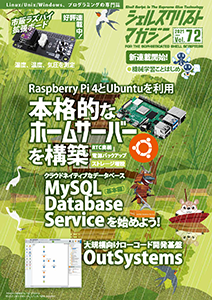
 緊急事態宣言などにより自宅にいる時間が増えています。外出できずにイライラしている、こんなときこそ、小型コンピュータボード「Rapsberry Pi」(ラズパイ)でホームサーバーを立ててみましょう。特集1では、人気のLinuxディストリビューションのサーバー版「Ubuntu Server」とラズパイを用いて、ホームサーバーを構築します。
 なお、ラズパイにUbuntu Serverをインストールして初期設定を施せば、あとはパソコンとほぼ同じようにサーバーアプリを導入・できます。したがって、リアルタイムクロック(RTC)、電源バックアップ、ストレージ拡張などのハードウエア強化を中心にホームサーバーの構築を紹介します。
 特集2では、オープンソースのデータベース管理システム「MySQL」のクラウドサービス「MySQL Database Service」(MDS)を紹介します。MDSは、MySQLの開発元である米Oracle社および日本オラクルが提供します。データ分析の分野では注目のサービスです。
 特別企画では、大規模システムの構築可能なローコード開発基盤「OutSystems」を扱います。このOutSystemsは、無償でも使えます。OutSystemsの開発環境となる「Service Studio」を触りながら、特別企画をお楽しみください。
 このほかに、入門者や初心者向けに機械学習について解説した連載「機械学習ことはじめ」が始まりました。AI(人工知能)の技術を学びたい人には最適です。今回も読み応え十分のシェルスクリプトマガジン Vol.72。お見逃しなく!

※記事掲載のコードはこちら。記事の補足情報はこちら

※読者アンケートはこちら

Vol.72 補足情報

投稿日:2021.05.25 | カテゴリー: コード

訂正・補足情報はありません。
情報は随時更新致します。

  • shell-mag ブログの 2021年5月 のアーカイブを表示しています。

  • -->